Your capture folder already has everything
Wherever you play, some tool has been quietly filing away video:
- NVIDIA ShadowPlay (the NVIDIA App these days) drops Instant Replay saves into Videos as .mp4, commonly 1080p or 1440p at 60 fps. Dense frames, great raw material.
- Xbox Game Bar stores its Win+Alt+G grabs under Videos/Captures, also .mp4.
- OBS, AMD ReLive, Steam: mp4 by default for ReLive and Steam, often .mkv or .mov from OBS depending on your settings.
- macOS capture writes .mov, and some tools hand over .m4v.
All of it decodes in the browser as-is, so there's no transcode chore before you start. And when the clip lives on a website rather than your disk (a match replay page, a browser game, cloud gaming in a tab), the Record a Tab button can capture that tab directly on a desktop browser, at playback speed and entirely locally, and hand the take to the editor as a fresh clip.
Frame rate is the fast-motion tax, so spend it deliberately
Gameplay is the hardest footage a GIF ever meets: flicks, whip pans, particles. More frames per second buys smoother motion and a heavier file, and you're the one holding the slider.
- 10 to 15 fps handles most clips: builds, slow pushes, anything conversational.
- 20 to 24 fps is for the genuinely quick stuff, where a 12 fps flick reads as teleportation. The size cost is real, so pair it with a shorter cut.
- Trim beats fps. The pro move on a fast play is two to three seconds of clip with a healthy frame rate, not ten seconds at maximum smoothness.
Speed is per clip here, 0.25x to 4x, so a clutch play can hang in slow motion, but there's no frame interpolation, only honest sampling of frames you already captured, which is exactly why 60 fps source footage pays off: sampled down to 20, it still yields clean, sharp frames. It also means a stuttery source stays stuttery, so when you have two recordings of the same play, clip from the smoother one.
Cut the fat: crop, scale, palette
A 1440p capture converted whole is a monster. Crop to where the action is, with exact ratios (16:9 for the full view, 1:1 or 4:5 for feeds, 9:16 for a vertical mobile clip), then scale the result down; chat embeds don't reward resolution past about 600 pixels wide. GIF's 256-color ceiling is the other squeeze: HUDs, neon, and smoke eat palettes for breakfast, so cutting to somewhere between 64 and 128 colors shrinks the file dramatically while the play stays perfectly readable. Flip dithering on if dark or smoky scenes start banding. The estimate refreshes after every tweak, so you can land under Discord's inline-preview comfort zone before rendering, and the small-file guide exists for when the budget is brutal.
Loop tricks: reverse the whiff, caption the play
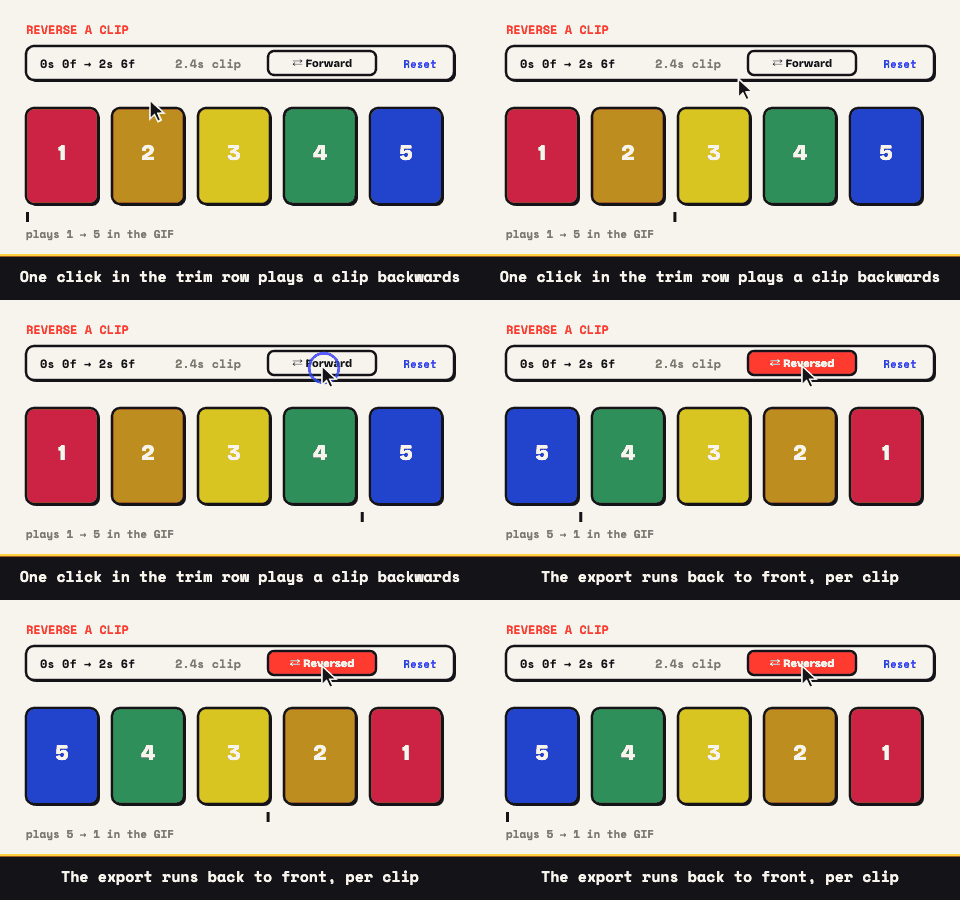
Any clip can run backwards. The ⇄ toggle in the Clip fx row flips playback for that clip in the finished GIF, and it works per clip, so in a multi-clip sequence one segment can rewind while the others play forward. The comedy writes itself: the missed shot un-fired, the fall un-fallen, the loot un-looted. (For forward-then-back in a single clip, flip the Bounce toggle next to it.)
Words help too. Up to three captions can ride on the GIF, in the classic meme look (white, black outline, uppercase) or a clean font. Drag each one to wherever it reads best and give it a time window so the label lands on the right beat of the play. The text captions page covers the finer points, and if the destination is a thread, the Reddit sizing guide keeps the feed happy.
Your capture stays home
Everything renders client-side in the tab: no upload, no queue, no stranger's server logging a file that happens to include your Discord overlay, your username, or the stream key you forgot was visible. Crop those out and they never existed anywhere but your own disk. Nothing gets stamped on the export, no login stands in the way, and no ceiling gets set by someone else's infrastructure; your machine's memory is the only limit, and it's a generous one. Bring the clip and keep the highlight to yourself until it's ready.