Frequently Asked Questions
Is What the GIF really free?
Yes. Completely free, with no signup and no watermark on your output.
Is my video uploaded to a server?
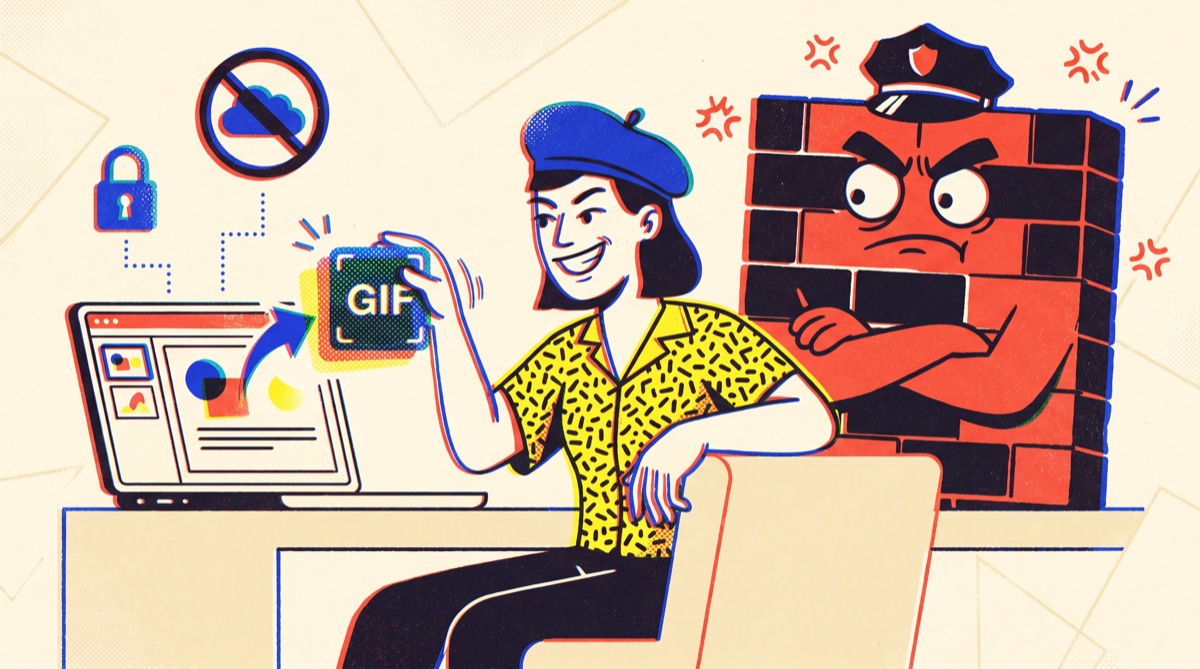
No. Everything runs locally in your browser using HTML5 canvas and a built-in GIF encoder. Your video never touches a server, which is also why conversion starts the instant you click the button, there's nothing to upload.
What video formats are supported?
MP4, MOV, AVI, WebM, MKV, FLV, WMV, 3GP, OGV, and more, any format your browser can play, which covers what phones record (iPhone and Android both). Existing GIFs load too, and so do still photos (JPG, PNG, WebP, AVIF, HEIC in Safari) and Android motion photos. Output is GIF, APNG, or silent MP4 on browsers with a built-in encoder.
Is there a maximum video size?
Up to about 500 MB. For very large videos, trim the clip first by setting the Start and End time before converting.
Can I crop the video?
Yes. Click "Crop Frame" on the preview, then drag to select the area you want. The output GIF is automatically sized to match the cropped region's aspect ratio so it never looks squashed.
Does it work on iPhone, iPad, or Safari?
Yes. What the GIF works in Safari on iOS and macOS, plus Chrome, Firefox, Edge, and Brave.
How do I add a video clip to Google Slides?
Google Slides supports embedding YouTube and Drive videos, but in-deck playback is unreliable, slow to start, won't auto-loop properly, and requires an internet connection. The most painless workaround is to convert the clip to a GIF and insert it as an image (Insert → Image). The GIF auto-plays, loops forever, works offline, and slides advance smoothly. Same trick works in PowerPoint and Keynote.
Why does converting take a few seconds?
Because the entire encode runs in your browser. The tradeoff is privacy and zero upload time. Most clips finish in 5 to 30 seconds depending on length, resolution, and frame rate.
Can I save my work and come back to it?
Yes. "Save project" in the editor downloads a small .wtg file describing your whole edit: clip order, trims, crops, captions, fades, every setting. Drop it back onto the tool later, together with the same clip files, and the project reassembles. The clips themselves never leave your machine, so the project file carries no footage, just the recipe.
Can it fade in and out?
Yes. Under All settings, pick a fade-in and fade-out duration and a color (black by default) and the whole edit eases up from it at the start and back down at the end, in the GIF, the MP4, and the preview alike.
Can I turn photos into a GIF?
Yes. Drop in JPG, PNG, WebP, or AVIF (HEIC works in Safari) and each photo becomes a short clip you can trim, caption, and sequence with video and other GIFs. Paste a screenshot straight in with Ctrl or Cmd V. It is a slideshow maker and a video-to-GIF tool in one.
How do I turn an iPhone Live Photo or an Android motion photo into a GIF?
Android motion photos hide a real video inside the JPEG, and this tool pulls it out right in the browser, no extra steps. iPhone Live Photos work a little differently: in Photos, open the Live Photo, tap the three-dot menu, choose Save as Video, then drop that video here. The
Live Photo guide walks through it with pictures.
Can it compress or optimize a GIF?
Yes, and it does it by default: identical frames merge and changed frames store only the part that moved. For more, the Extra Compression dial under All settings adds lossy compression that typically cuts another 30 to 50 percent. All local, so recompressing a sensitive GIF never uploads it.
Can it export APNG, or a boomerang?
Both. The Output Format switch offers APNG (full color, no palette) alongside GIF and MP4. For a boomerang, turn on Bounce on any clip and it plays forward then backward in one loop; combine it with the speed dial for slow-motion or snappy rebounds.
Can it make a boomerang?
Yes. Turn on Bounce for any clip and it plays forward, then straight back, in one loop, the classic boomerang. It's per clip and it stacks with the speed dial (0.25x to 4x) and with reverse, so a slow-motion rebound is two clicks. The
boomerang page walks through it.
Does it add a watermark?
Never. Your GIF is exactly the frames you chose, at the size and quality you chose, with no branding.