What HEIC and HEVC actually are
Since iOS 11, iPhones ship with a camera setting called High Efficiency, and it means what it says: photos save as HEIC and videos record in HEVC (also called H.265), at roughly half the file size of the older JPEG and H.264 for the same quality. On the phone, in Apple's apps, and across AirDrop, the formats are invisible. They only become a problem when the file lands somewhere else.
The problem is not technical, it is legal. Decoding HEVC is covered by patents, and Apple pays for those licenses at the operating-system level, which is why Safari opens both formats natively. Chrome and Edge never shipped their own decoder; they can play HEVC video only when the computer's graphics hardware carries the license instead. Firefox mostly declines the whole business, and HEIC photos are locked out almost everywhere outside Safari.
This converter runs entirely inside your browser, which is its whole privacy promise: nothing you drop here ever uploads. The honest flip side is that it can only decode what your browser can decode. So when you drop a file it can't read, the tool checks the first bytes locally, names the format, and points you at this page instead of shrugging.
The zero-work fix: open this site in Safari
On any Mac or iPhone, the fastest fix is no conversion at all. Open whatthegif.com in Safari and drop the same file. HEVC video plays there natively, recent Safari opens HEIC photos too, and the whole editor works the same as anywhere else. If you are already on an Apple device, this is thirty seconds, start to GIF.
On Chrome and Edge, HEVC video often plays when the machine's graphics hardware can decode it, which covers every Mac and most recent Windows computers. If your HEVC clip loaded fine and you are reading this out of curiosity, that is why. HEIC photos stay Safari-only either way.
HEIC photos: the ways to JPEG
A HEIC needs one conversion to JPEG (or PNG), and every platform has a built-in route:
- On the iPhone itself: pick the photo through the website's file picker instead of dragging a synced copy, and iOS usually converts it to JPEG on the way out, automatically. HEIC mostly bites after a file has left the phone raw, over AirDrop or a USB cable.
- On a Mac: Preview opens every HEIC. File, Export, pick JPEG, done. Stock app, no install.
- On Windows: the Photos app opens HEIC once the free HEIF Image Extensions are installed from the Microsoft Store, and can save a copy as JPEG or PNG from there.
Once it is a JPEG or PNG, drop it back in: a photo becomes a five-second clip you can trim, caption, and sequence with video, and the images-to-GIF page covers that whole workflow.
HEVC videos: the ways to MP4
An HEVC video needs one export to H.264, the codec everything plays:
- On a Mac: open the video in QuickTime Player, then File, Export As. Pick a resolution, and if you see a Greater Compatibility (H.264) option, choose it so the export is H.264 rather than more HEVC. Stock app, no install.
- On Windows: VLC converts for free: Media, Convert / Save, add the file, pick the "Video - H.264 + MP3 (MP4)" profile, Start. HandBrake, also free, does the same with its default preset and a Start button.
- On the iPhone: drop the clip into iMovie, Apple's own free app, and share the result; the export comes out H.264. Or skip conversion entirely and use Safari, which is less work.
The re-encoded MP4 drops straight into the converter like any screen recording or download would. One conversion at high quality changes nothing you would ever see in a GIF, because the GIF re-quantizes every frame anyway.
One camera setting stops it forever
If your files keep tripping over this, the permanent fix lives in the camera settings:
- Open Settings and tap Camera.
- Tap Formats, the first row.
- Choose Most Compatible. New photos save as JPEG, new videos record in H.264, and everything opens everywhere from then on.
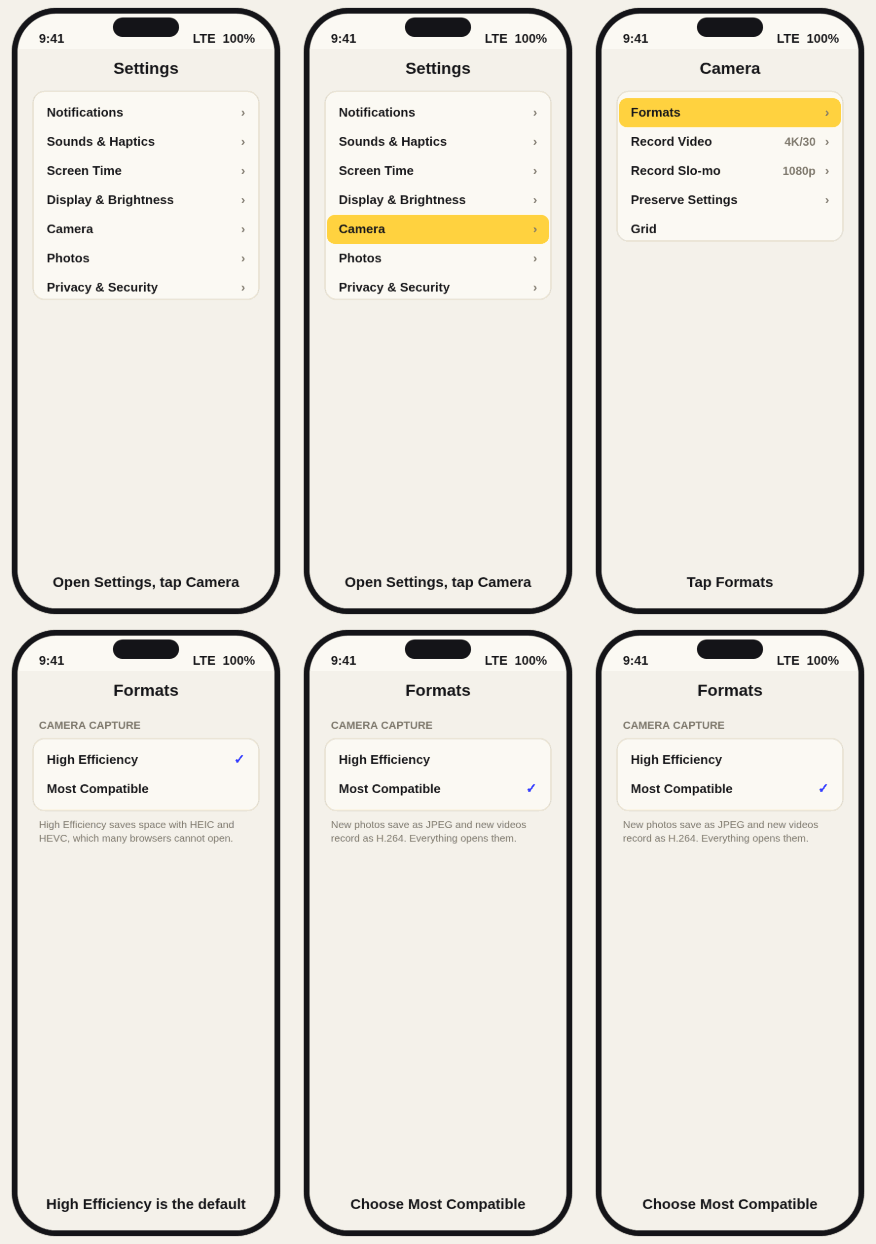
Two honest notes. The switch does not convert anything already on the phone, only what you shoot next. And Most Compatible files run bigger, which is the price of opening everywhere; if your whole workflow lives on Apple devices and Safari, High Efficiency remains a perfectly good default. There is also a middle path: Settings, Photos, Transfer to Mac or PC, Automatic keeps High Efficiency on the phone but converts files as they copy over USB.
What this site does when you drop one
Drop a HEIC photo or an HEVC video the browser can't decode and the converter reads the file's opening bytes right in the tab, recognizes the format signature, and shows a short notice naming the format with a link to this page. That check is local like everything else here; the file goes nowhere, during the check or ever.
Why not just decode it in the tool? Two honest reasons. HEVC decoding is patent-licensed territory, which makes a built-in decoder a legal project as much as a code project, and it would add a megabyte of download for every visitor to cover the one case Safari already handles natively. And because nothing uploads here, there is no server that could quietly convert the file for you either. The thirty-second fix in tools you already own is the better trade, so this page is the fix.
One more iPhone case worth knowing: if the photo you dropped is a Live Photo, the motion is not in the HEIC at all, it lives in a hidden video file next to it. Converting the still to JPEG gets you a frozen frame. The Live Photo guide shows the twenty-second Save as Video route that frees the actual clip.