A slideshow is just short stills in a row
Drop a JPG, PNG, WebP, or AVIF onto the tool (Safari takes HEIC too) and it lands as a five-second freeze-frame clip on the strip, exactly as if it were a five-second video that happens not to move. That framing matters, because everything a clip can do, a photo can now do: trim it to a beat, crop it, rotate it, give it a caption window.
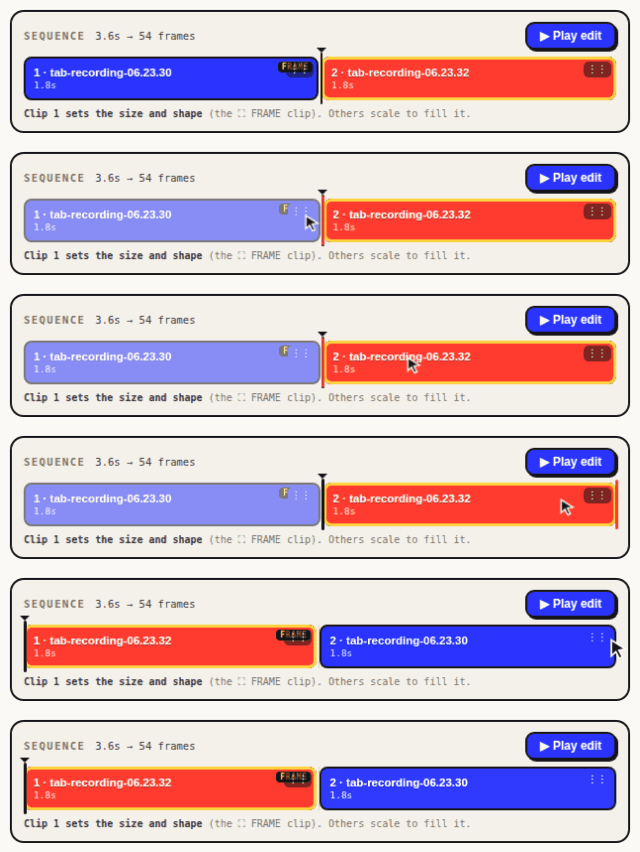
A photo slideshow, then, is nothing exotic. It is several short stills in sequence, each trimmed to a second or so, encoded as one loop. Drop the photos in roughly the right order, tighten each clip, and the slideshow assembles itself. No timeline software, no template picker, no account.
Mix stills with video and GIFs freely
The ten clip slots do not care what fills them. A before photo, four seconds of demo footage, an after photo. Three product shots between two GIFs. A screenshot as a title card ahead of a screen recording. Stills, videos, and GIFs share the strip as equals, each with its own trim and crop, and you reorder by dragging the grip on any clip's block until the story reads in the right order. The craft of cutting several sources into one loop is covered on the combine videos page; with photos it is the same job, only easier, because a still can never jump-cut against itself.
Captions per slide, one filter for the whole edit
Captions are how a slideshow explains itself. You get up to three per output, in meme or clean style, and each caption takes a timing window, so "before" can sit over the first photo and "after" over the last with nothing in between. Line the windows up with the cuts and each slide arrives labeled. The wording craft lives on the GIF maker with text page.
Filters are the one control that is not per slide. Black and white, sepia, warm, cool, and invert each apply to the whole edit, which is what a slideshow wants anyway: one consistent grade reads as a set, five different grades read as an accident. If one photo needs its own treatment, treat it before you drop it in.
Pacing: 0.8 to 2 seconds a slide, and cheap fps
Trim each still to somewhere between 0.8 and 2 seconds. Under a second reads as flicker unless you are deliberately building a flipbook; past two seconds, viewers wander off. Text-heavy slides earn the long end, glamour shots the short end.
Frame rate is where slideshows get away with murder. Nothing moves inside a still clip, so 5 to 10 fps looks identical to 30 and costs a fraction of the frames; the encoder's frame deduplication merges the repeats anyway, so low settings and high settings converge on the same small file. Spend the savings on a fade in and out to a color, set under All settings, which gives the loop a designed opening and a graceful seam at the restart.
Phone photos, screenshots, and the HEIC question
Phone photos are JPEGs in practice, whatever the camera app stores internally: when an iPhone hands a photo to a browser file picker, it arrives as JPEG, so HEIC shooting is a non-issue here. (Actual .heic files also open directly in Safari.) Screenshots are quicker still, because paste works: press Ctrl+V, or Cmd+V on a Mac, and whatever sits on the clipboard drops in as a clip. Screenshot a chart, paste it, caption it, done. None of it uploads; photos of your kids, your whiteboard, or your unreleased UI get decoded and encoded on your machine only.
The size math for photo GIFs
Photographs are the hardest thing you can feed a 256-color format. A sunset that a JPEG shrugs at will strain a GIF palette more than any screen recording, so dithering earns its keep here, and two levers dominate: width and colors. Hold width to what the destination actually displays, 480 to 640 pixels covers most chat and docs, and try 128 colors with dithering on before assuming you need 256.
If the slideshow still comes out heavy, take an exit: the same edit exports as APNG for full 24-bit color, or as a silent MP4 in Chrome, Edge, and Safari at a fraction of the weight. The full squeeze order lives in the small-file recipe.