Let's clear something up: the GIF is not a nostalgia act. It's the single most reliable way to put motion somewhere a video file refuses to behave. Decks that choke on an embedded MP4 right as the client leans in. Slack and Discord that flatten your link into a sad gray rectangle. Bug tickets where "it does a weird thing on hover" needs to actually show the weird thing. Inboxes that strip every player you throw at them. A GIF just plays. Everywhere. No codec roulette, no "click to enable," no IT ticket.
Why these guides exist
Every destination has its own quiet rules, a file-size ceiling, an aspect ratio it secretly wants, a menu path buried three clicks deep. A GIF that looks crisp in Slack can blow past PowerPoint's comfort zone; one sized for an email looks like a postage stamp on a projector. So instead of one vague "how to make a GIF" article, this is a library of specific field guides, one per battlefield, that get you from raw clip to the thing actually looping in its final home.
One tool behind all of them
Every guide runs on What the GIF, and the workflow is the same wherever you're headed:
- Drop your video, an existing GIF, or a still photo into the converter. Nothing uploads, the entire conversion happens inside your browser tab, so your unreleased footage never touches a server.
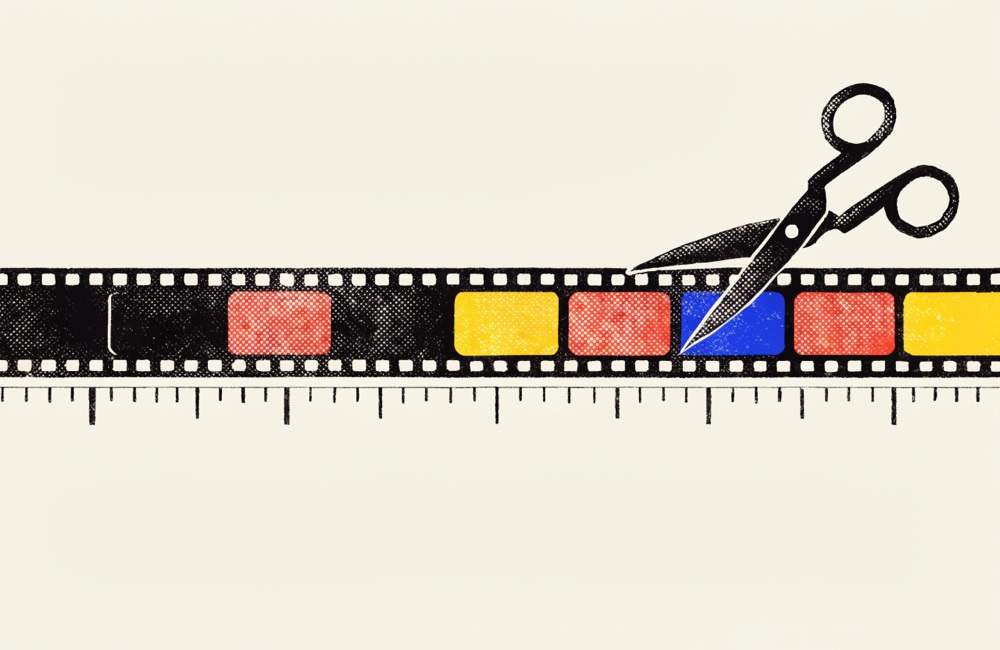
- Trim to the exact frame. The timeline shows seconds and frames and snaps to frame boundaries; arrow keys nudge the in and out points one frame at a time, so you cut on the beat instead of "close enough."
- Lock the crop to a real aspect ratio, 16:9, 9:16, 1:1, 4:5, or 4:3, so the output never squashes to fit.
- Pick a frame rate (10 to 15 fps is the sweet spot for screen capture and UI motion) and export. Keeping most GIFs in the 2 to 5 MB range is a good rule of thumb so they actually load where you're sending them.
And when the destination wants a video instead of a GIF, the same edit exports as an APNG or a silent MP4 via the Output Format switch (Chrome, Edge, and Safari encode the MP4 locally). Free, no signup, no watermark, works in any modern browser. The ads keep it that way, a fair trade for never being told to "upgrade to remove the watermark."
The frame-perfect difference
Most of what makes a GIF look amateur is sloppy edges: a half-second of dead air before the action, a loop that stutters because the cut landed mid-motion, a logo squished by a forced resize. If you only read one guide first, make it Frame-perfect trimming, it's the technique every other guide leans on. From there, the destination guides handle the last mile: the exact Insert ▸ Image ▸ Upload from computer path in Google Slides, the drag-and-drop and file-size quirks of Slack and Discord, or making a bug actually reproducible in a ticket.
Pick your battlefield
Below you'll find the full set of guides, one for each place a GIF earns its keep. Scan for the destination that's fighting you right now, click in, and follow the recipe end to end.