A GIF gets watched. A video file gets scheduled.
Picture the Slack thread. You post forty seconds of screen capture as an attachment, and what your teammates see is a filename, a size, and a decision to make later. Post the same moment as a GIF and it is already playing by the time they scroll to it. That gap is the whole argument. In Slack, in a GitHub issue, in a Notion doc, a loop that starts on its own beats a video that asks permission.
The usual objection to online converters is what happens to the footage. Most of them push your file to a server, and a recording of a staging dashboard or a customer account has no business taking that trip. What the GIF does the decode, the trim, and the GIF encode inside your own tab; the recording stays on your machine from drop to download. The private GIF converter page spells out that promise, if it's the deciding factor.
Bring a file from any recorder, or skip the recorder
Every screen recorder ships a slightly different container, and none of that matters here. Anything your browser can play is eligible:
- QuickTime on a Mac writes .mov (Cmd+Shift+5, pick a region, stop).
- Xbox Game Bar and the Windows Snipping Tool write .mp4 (Win+Alt+R starts a capture immediately).
- OBS gives you .mp4 or, if you record with the crash-proof setting, .mkv. Both drop straight in, no remux.
- ChromeOS saves its recordings as .webm, which browsers treat as a first language.
And if the thing you're demonstrating lives in a browser anyway, you can now cut the recorder out of the loop entirely. A Record a Tab button waits in the drop zone: one click opens your browser's share picker, you pick the tab (or a window, or the entire screen), and everything that happens there is captured until you stop (or until the five-minute cutoff steps in). The take then appears in the clip strip, ready to trim, without a file ever touching your Downloads folder. Capture runs at real speed, so a ten-second walkthrough costs ten seconds of your life, and it's desktop-only; phones don't get the API. What it records is what the screen showed, which makes it the convenience path; a file from a dedicated recorder is still the frame-perfect one. For a web UI bug, convenience usually wins.
Cut the dead air before you touch anything else
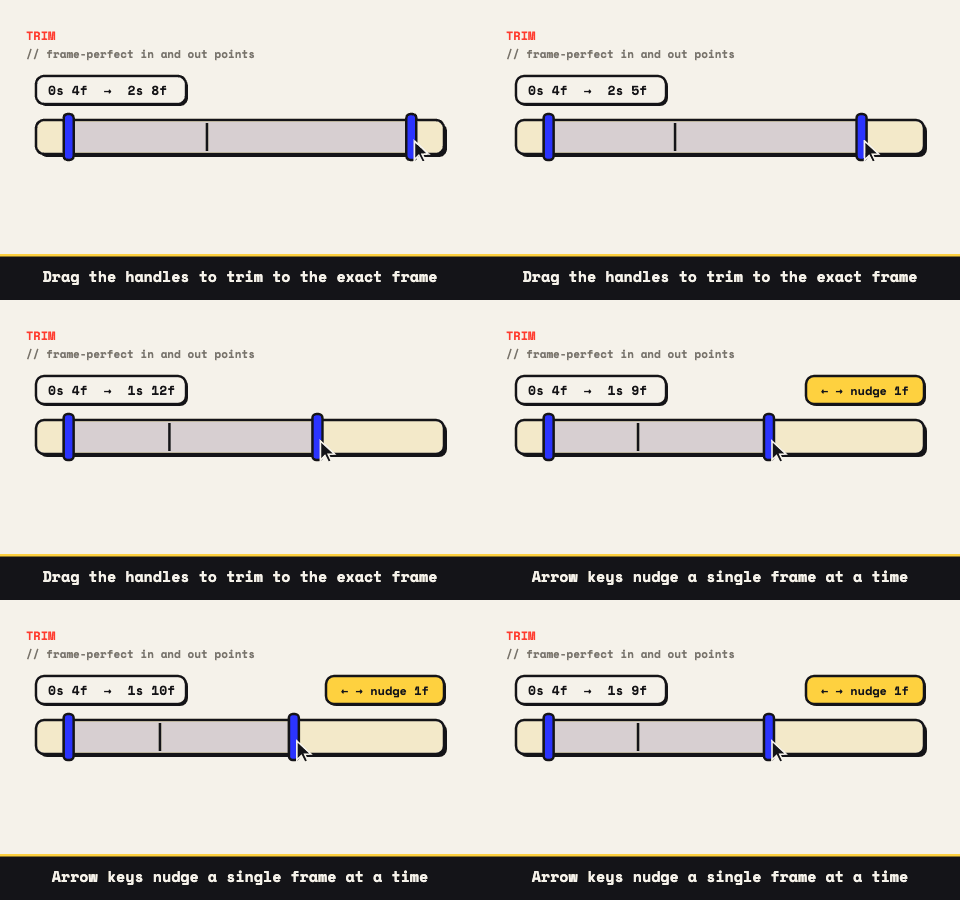
Every screen recording opens with the same footage: you, finding the window. The trim handles exist to delete that. Drag them until they bracket the action, then click one so it has focus and press the left or right arrow key; each press shifts the cut a single frame, the gap between a loop that snaps shut and one that hiccups at the seam.
Keep it short. A screen demo says what it needs to in three to eight seconds: the toggle that misbehaves, the animation you shipped, the state that shouldn't exist. Past that, GIF weight climbs fast and the format's color budget starts to show. A two-minute walkthrough should stay a video, with a GIF for the single moment worth replaying.
Settings that keep interface text sharp
Screen capture is friendly footage for a GIF: flat color, hard edges, not much motion. The settings just need to respect the small text.
- Frame rate: 10 to 15 fps carries cursor movement and menu transitions without anyone noticing the missing frames. 30 fps mostly buys you a heavier file.
- Colors: this is the one place to spend. 128 colors, sometimes the full 256, is what keeps labels and code legible; a starved palette turns UI type into porridge.
- Crop: tighten to the panel that matters before scaling. The crop locks to exact ratios (1:1, 9:16, 4:5, 4:3, 16:9) for destinations with a fixed shape.
- Scale: match the display size. A README animation rarely needs more than 600 to 800 pixels of width, and halving dimensions cuts the pixel count to a quarter.
- Dithering: leave it on if the capture has gradients or soft shadows, so banding doesn't stripe across them.
The projected file size recalculates as you move each control, so you can trade legibility against weight with the number in front of you. If a hard byte ceiling is the real constraint, the small-file GIF workflow goes lever by lever.
Where screen recording GIFs earn their keep
The destinations are predictable, and the format fits all of them: a repro loop pinned to a bug report, a before-and-after in a design crit, a feature demo in release notes, a hero animation at the top of a repo (sized for that job in the GitHub README guide). No player chrome, no embed permissions, no autoplay policy debates. The GIF just runs, wherever the conversation already is.