Autoplay is the whole argument
A hosted demo video asks for a click, and most visitors decline. A GIF starts moving as the page paints, loops the money moment indefinitely, and drops into places video can't reliably go, launch emails first among them. The feature proves itself while the visitor is still deciding whether to read the headline.
- Starts playing without a click and repeats without a rewatch button
- Travels into email, where embedded video mostly won't
- One file, no player, no embed code, no hosting decision
The format's weaknesses (256 colors, hungry file sizes) are manageable with the right cut, and the same exported file then covers the changelog, the sales follow-up, and the docs page. One good loop gets reused for a quarter.
Two ways to get the source clip
If you keep polished captures around, use one: MP4, MOV, or WebM from macOS screen capture, the Snipping Tool, a Loom export, whatever your team records with. A file gives the converter every frame the encoder saw, which makes it the frame-perfect route.
When the product is a web app, though, the fastest source is often the tab it's already running in. Hit Record a Tab (it sits right in the drop zone) and the browser's share picker comes up; choose the product tab, click through the flow once, stop, and the take drops into the editor as a clip. It records what's on screen in real time (ten seconds of demo takes ten seconds), works on desktop browsers only, stays entirely on your machine, and cuts itself off at five minutes. For a demo you'll trim to six seconds anyway, that's usually all the fidelity the job needs.
Either way, one recording habit pays off: drive the product slower than feels natural, and hold on the result. GIF frame rates flatten frantic motion, and the pause is what makes the payoff legible when the loop wraps around.
One idea, three to six seconds
The loops that convert show a single cause and its effect. Open the filter, the list re-ranks. Drag the slider, the chart redraws. Trim until the clip contains that and nothing else, and put both cut points on quiet frames; a loop that opens and closes on stillness repeats without a visible seam.
Three to six seconds is the working range. Past six, the repeat stops reading as a loop and starts reading as an untrimmed video. Two features worth showing means two GIFs, or it means the next section.
When one clip can't tell it: sequence up to ten
Some demos are a story: open the picker, apply the change, see the export. The tool builds one GIF from up to ten clips laid end to end. Trims and crops stay per-clip, the order shuffles until the story reads right, the joins between clips are hard cuts, and captions can run across them, so one label can ride the whole demo.
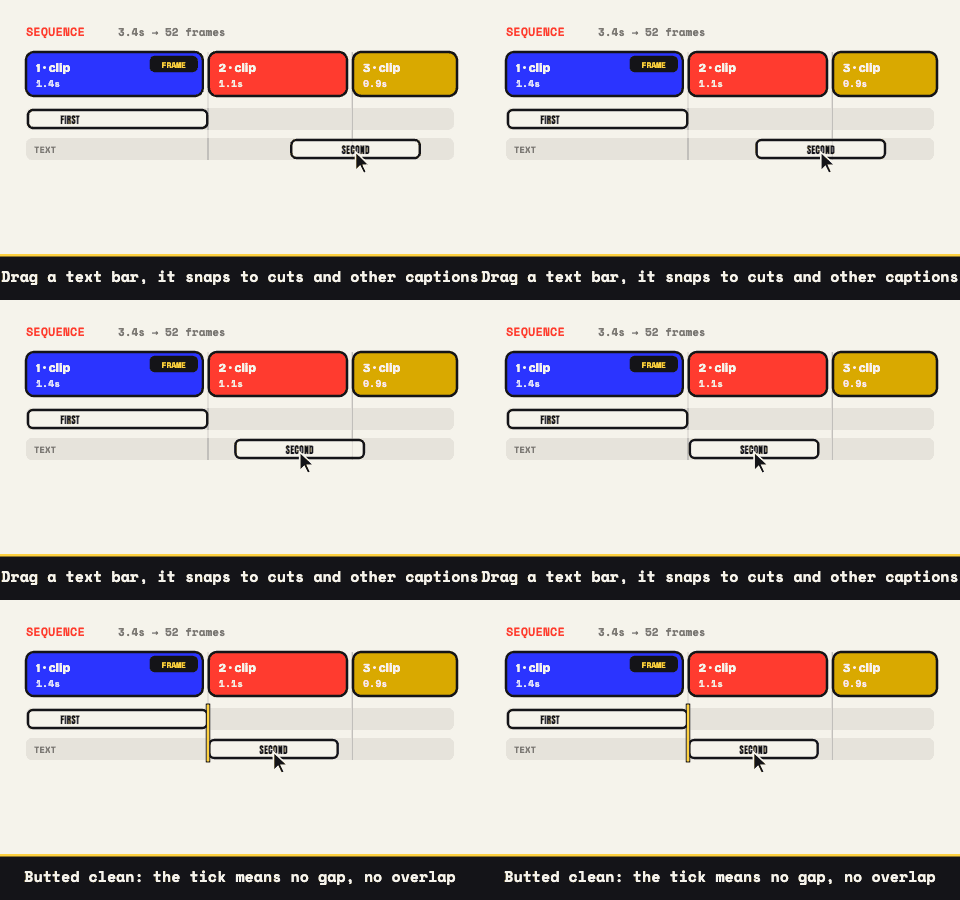
Under the preview, a sequence timeline strings the whole edit into one run of output time, and the FRAME toggle picks which clip dictates the output size; the rest get cropped to fill or fitted with true letterbox bars, your call per the Mismatched Clips setting. Before converting, hit Play edit and the assembly runs exactly as the encoder will render it, cuts, captions, bars and all. The multi-clip page goes deeper on the mechanics.
Frame it for where it will live
Crop away the desktop, the browser chrome, everything that isn't the interface at work. The ratio lock keeps output proportions honest: 16:9 for a wide hero slot or an email banner, 1:1 for a feature-grid square, 4:5 for a taller mobile-feed placement. Then scale to the real display size; heroes rarely need more than 900 to 1200 px of width, and every pixel past that is pure loading time.
Light enough to load before the fold scrolls away
A hero GIF that paints slowly cancels its own argument. Frame rate and palette are the heavy levers: 12 to 15 fps covers UI motion comfortably, and flat app interfaces compress beautifully down around 64 colors, with headroom to 128 when gradients band. Dithering smooths whatever the smaller palette roughens. The output-size readout follows each change; keep adjusting until the number fits where the GIF is headed.
Then the file travels: pin it to the top of a GitHub README, drop it in the launch thread, embed it in onboarding docs. Cut once, deploy everywhere your product gets discussed, and start at the tool when the next feature ships.
One more habit that pays off in a product context: your UI will change, and the demo will need re-cutting. Save project stores the whole edit as a .wtg file, clip order, trims, crops, captions, settings, so next release you drop it back in with a fresh recording under the same filename and re-export in a minute instead of rebuilding the cut from memory.