Formats are boxes, and the browser opens most of them
Every video file is two decisions stacked: a container (MP4, MOV, WebM, MKV, AVI, M4V) around a codec (H.264, HEVC, VP8, VP9, AV1). Conversion tools have historically made you care about that grid. This one doesn't, because it delegates the reading to the most battle-tested decoder you own: your browser. If the tab can play the file, the file converts.
In practice that covers MP4 from phones and editors, MOV off a Mac or an iPhone, WebM from browser captures, and the AVI, MKV, and M4V strays from deeper in the archive. An existing GIF now loads as well, taken apart frame by frame in the tab and treated as one more clip from there. Even a still image opens now, arriving as a five-second clip, so the source no longer has to move.
There's a second way in, too. On desktop browsers, the Record a Tab button captures another tab, window, or screen through the browser's own share picker and lands the recording on the timeline as a clip, recorded in real time, entirely on your machine, with an automatic stop at five minutes. It's the convenient path when the thing you want to loop is playing on screen right now; bringing a file remains the frame-perfect one.
The dials you get, and the gimmicks you don't
Most video-to-GIF tools offer a slider and a prayer. This one hands over the settings that actually determine whether the output looks sharp or looks like a fax:
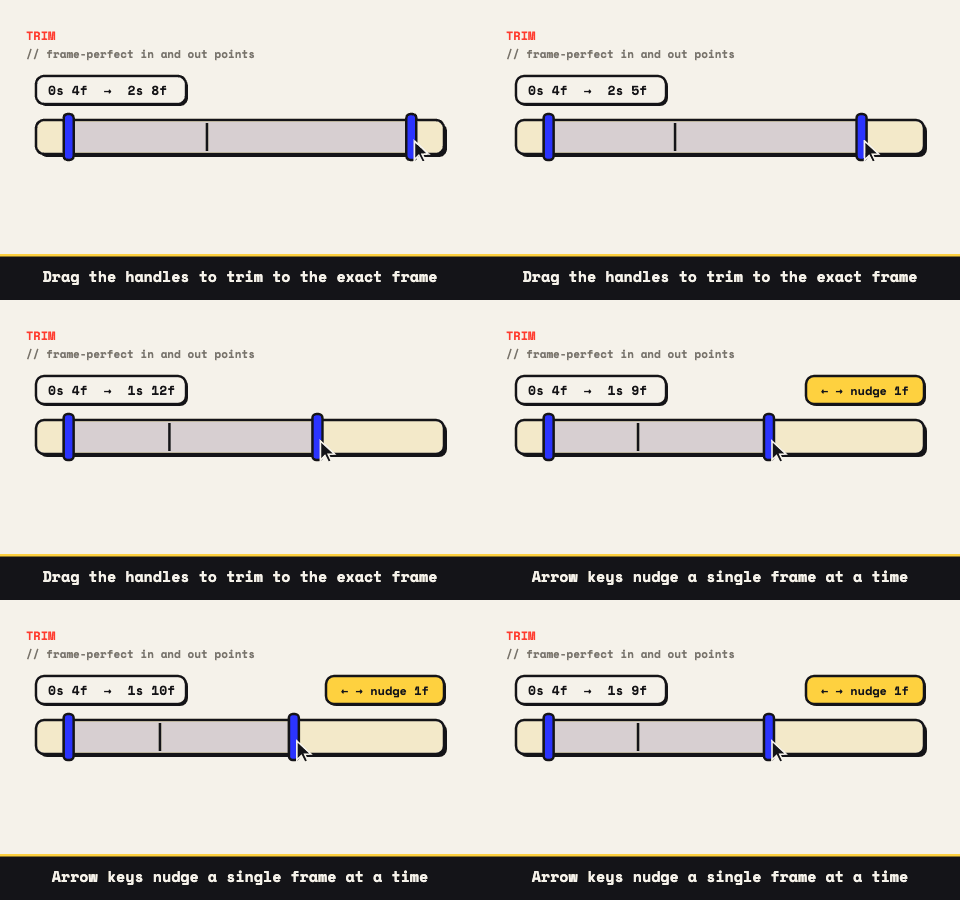
- Trim. Positions are measured in frames, not vague seconds. The arrow keys move the active handle a single frame in either direction, which is how dead air disappears and loops close cleanly.
- Crop. Five locked ratios: 1:1, 9:16, 4:5, 4:3, 16:9. Pick the destination's shape and nothing warps en route.
- Frame rate. Between 10 and 15 fps suits nearly everything. Spend above that only when something whips across the frame.
- Scale. Width is the heaviest lever on file size. A 1080p source rarely deserves to stay 1080p as a GIF.
- Palette and dithering. Drop toward 64 to 128 colors and let dithering paper over the gradients, or keep it crisp for flat UI.
- The estimate. Output size is projected before you export, so tuning happens against a number, not a hunch.
The omissions are deliberate: no AI, no stickers. What did make the cut: any clip can run backwards via the reverse toggle, bounce forward-then-back like a boomerang, or run at anything from 0.25x to 4x speed; up to three text captions ride on the GIF in meme or clean styles, positioned anywhere and timed to the whole loop or a slice of it; and a sequence of up to ten clips can become one GIF joined by hard cuts, each keeping its own trim and crop. Restraint is why the output stays clean.
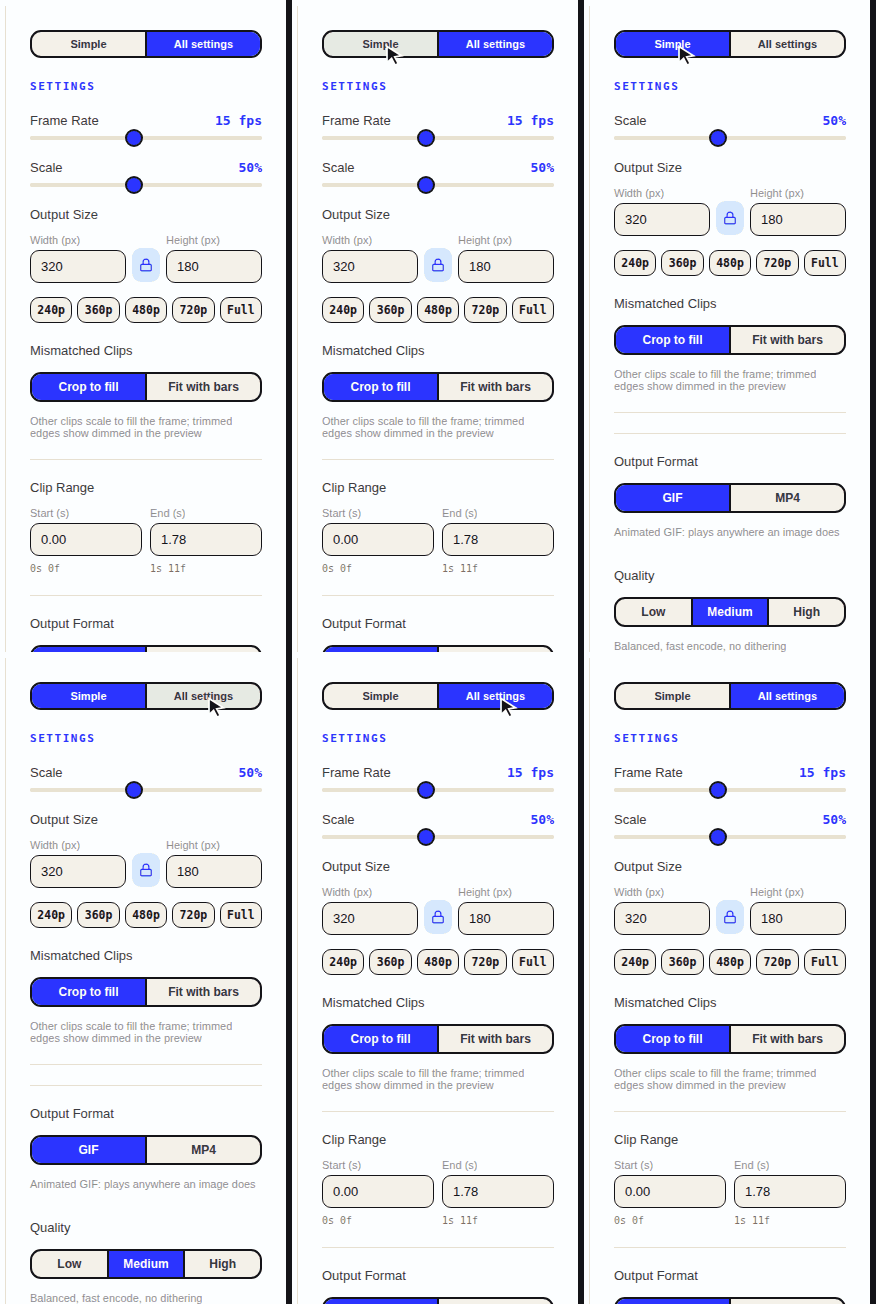
The panel itself starts in Simple mode, width, format, quality, and expands to All settings when you want the frame rate, palette, fades, and bitrate dials; it remembers which side you prefer. Mistakes are cheap either way: undo and redo cover every edit including a deleted clip, and the size estimate is measured by encoding a few real frames of your clip rather than guessed from a formula, so the number you tune against is the number you get.
The trim is where good GIFs are made
The craft compresses to one habit: cut harder than feels polite. A loop earns its keep in a couple of seconds, so find the single beat that matters, bracket it, and then remove one more frame from each end to hide the seam. Everything you delete is weight the viewer never downloads.
Width comes next, because resolution moves the size needle more than any other setting: 480 to 640 pixels covers chat, tickets, and READMEs with room to spare. Then 12 to 15 fps, then palette toward 64 to 128, dithering on, checking the estimate as each dial moves. The small-file workflow continues down this road for anyone chasing every last kilobyte.
The architecture is the privacy policy
Every frame is decoded and re-encoded by your own browser on your own hardware. No upload happens because no server participates; load the page once and it will finish conversions with the connection switched off. A confidential demo or unreleased footage simply never exists anywhere else. That holds for the newer Output Format switch too: flip it from GIF to MP4 and the tab encodes a silent H.264 video instead, using the encoder your browser ships (Chrome, Edge, and Safari have one; Firefox varies), still without a byte going anywhere.
The same design explains the pricing page that doesn't exist: nobody asks for an account or an email, no logo lands on your export, and no upload ceiling waits to reject a file at 99 percent. Ads keep it free, and that's the entire transaction.
Loops go where video links can't
A GIF starts playing the moment it renders, repeats until the tab closes, and asks nothing of the viewer: no player, no account, no permissions dialog for the colleague three time zones away. That's why it remains the fastest way to put motion inside text.
- Bug tickets and pull requests. Two seconds of the repro outruns three paragraphs describing it.
- Changelogs and demos. Show the feature doing the thing; a short loop sells the click better than a screenshot ever will.
- Social and chat. Sized right, one clip drops into a timeline, Slack, or a group thread without being re-encoded into mush.
- Docs and design tools. Notion, Figma, and Google Docs each play GIFs where they're embedded, so a workflow can demonstrate itself inside its own documentation.
However the footage got made, the route is identical: drop it on the tool, find the loop, and export.