Phone footage thinks in portrait
Nearly everything a phone records is 9:16: clips destined for Reels, Shorts, or Stories, screen recordings of apps, the video a friend fired into the group chat. Turning one into a GIF makes sense for reactions, product moments, and embeds that need to autoplay silently. Drag the clip into the converter and the preview builds on your device; portrait MP4 and MOV decode natively in every current browser, so there is no format wrangling first. If the clip is stuck on an iPhone, the iPhone video to GIF page covers getting it off the phone.
Tall, cropped, or boxed
The crop control only offers true ratios, so nothing ever stretches or squashes. For portrait footage the menu reads like this: 9:16 preserves the full tall frame and looks like the original; 4:5 shaves a little from the top and bottom for feeds that favor shorter portrait; 1:1 cuts a square that travels well in chat and costs noticeably fewer pixels than the tall version. Because only exact ratios are offered, the output is always a clean standard shape rather than something a platform will want to re-letterbox. Drag the crop box around until the subject sits where you want it before moving on.
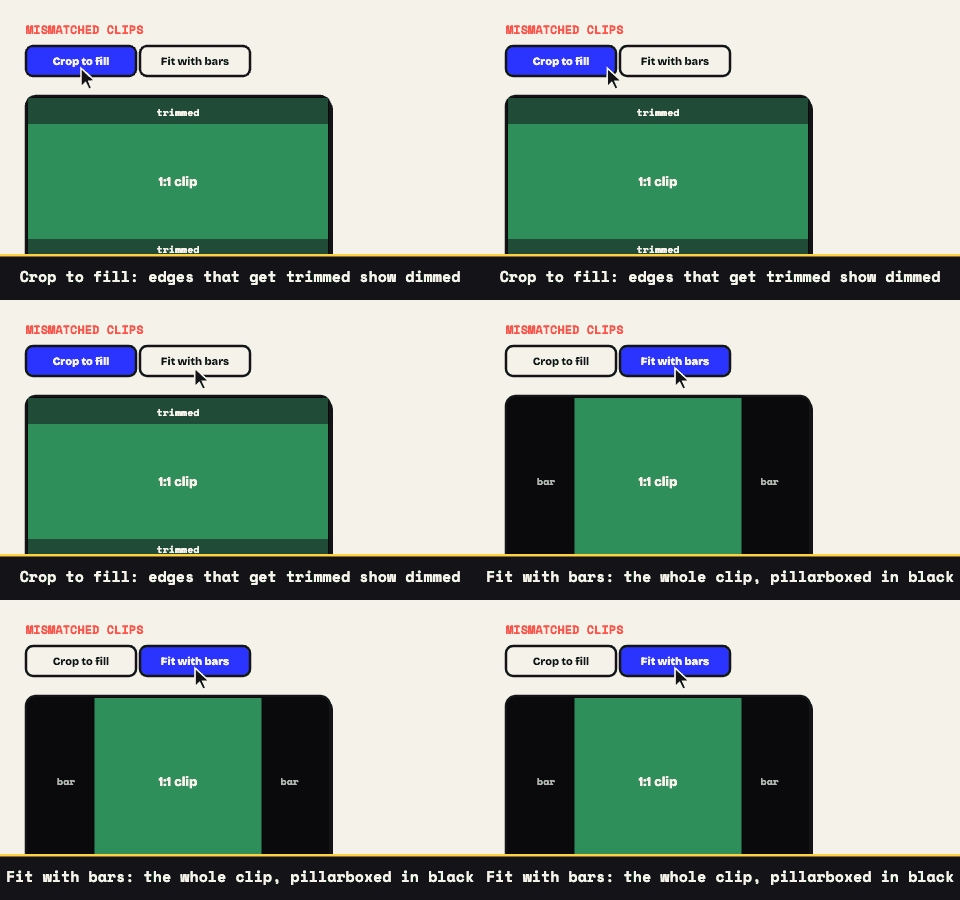
Shapes also collide sometimes: a tall clip headed into a square output, or a sequence mixing portrait and landscape sources. A Mismatched Clips setting gives you two honest answers for that. Crop to fill enlarges the clip until no gap remains, and the preview dims whatever gets shaved off so the cost is visible up front. Fit with bars shrinks the clip until all of it fits, filling the leftover space with real black bars you can see live.
Find the two seconds worth looping
Phone clips run long by nature; the loop inside them is usually somewhere between two and five seconds. Grab the ends of the timeline and close in on the beat, then use arrow-key frame steps to place the first and last frame precisely. For a reaction or a punchline, that placement is the whole joke. One frame of slack at either end and the timing goes flat. And if the moment needs a label, you can lay up to three text captions over the preview, meme-style or clean, each with optional timing so it shows for only part of the loop.
The trim also happens to be the strongest size reduction available, ahead of anything in the settings panel, so make it count before adjusting anything else.
Weight control for tall frames
A tall GIF spends pixels fast, so keep the other dials modest:
- Width between 360 and 480 pixels is plenty for portrait in a chat window or an embed, and far lighter than native phone resolution.
- Frame rate in the 10 to 15 fps range carries phone footage comfortably; each frame you skip is weight you skip.
- Palette: 64 to 128 colors is the practical range, with just enough dithering to keep skies and skin from banding.
An estimate of the finished size ticks along as you adjust; land it under about 2 MB for chat. When the target is genuinely tiny, the small GIF from video page ranks every lever by payoff.
Runs on the phone too, privately
Because the tool is a web page, the phone that shot the clip can also convert it: open the site in the phone's browser and the whole pipeline runs on the device. No app store, no account, and no copy of your footage on any server, since none is ever contacted with it. Encoding runs at the speed of the device, so a short clip finishes quickly and a long one is just another argument for trimming first. The export downloads wherever you are working, watermark-free, ready to post as the shape you chose.