Size the window before you press record
A tab capture records the tab at whatever size the tab currently is, which makes the biggest quality decision one you take before any recording starts. Resize the browser until the component you care about is being drawn at, or above, the size you intend to export at. Captured at 800 px and scaled down, a card stays crisp. Captured at 400 and scaled up, it is mush, and nothing downstream repairs that.
Then clear the frame. Close DevTools, hide the bookmarks bar, scroll the element to where you want it, and set the page to whatever state the animation begins from. You are shooting a component, not a browser. Record a Tab in the editor opens the browser's own share picker, and the crop takes the last of the chrome off afterwards, locked to 1:1, 16:9, or whichever ratio the destination wants.
Your own accessibility setting can switch the animation off
A genuinely common way to lose fifteen minutes: the animation refuses to run and the code looks fine. Most carefully built sites wrap their motion in a prefers-reduced-motion media query, which reads an operating-system preference (Reduce Motion on macOS and iOS, the animations toggle in Windows accessibility settings, equivalents elsewhere). If that preference is on, the site is behaving exactly as designed and there is nothing on screen to capture.
The related trap is the browser throttling work in a tab it believes nobody is looking at. Keep the tab you are capturing visible, put it in its own window if you need to click elsewhere, and do not minimize it partway through a take. If the animation is triggered by an element entering the viewport, reload with the element out of view and scroll it in while recording, because a page that already fired the trigger will not fire it again.
Motion design needs frames that interface footage does not
Screen recordings of a user interface are forgiving. A pointer crossing a menu reads perfectly at 10 to 12 fps. Motion design is the opposite: an eased transform, a spring, or a Lottie curve at 12 fps becomes a slideshow, because the entire content of the animation is the shape of the acceleration and you have just thrown most of it away.
Budget 24 to 30 fps for real motion work and accept that the file lands several times heavier than a UI loop of the same length. Buy the bytes back somewhere cheaper: crop harder, drop the export width, and cut the loop to two or three seconds. Flat vector work also compresses unusually well, since large areas of a single flat color are the one thing a palette-based format is genuinely good at.
Two ceilings worth knowing. The capture cannot beat the display, so a 60 Hz screen produces at most sixty distinct frames per second no matter what you ask of it. And the encoder invents nothing: the source clip's own frame rate is the ceiling for the export, so a choppy capture stays choppy however high you set the dial. Fix it at the capture, not at the settings panel.
Close the loop on the animation, not on the clip
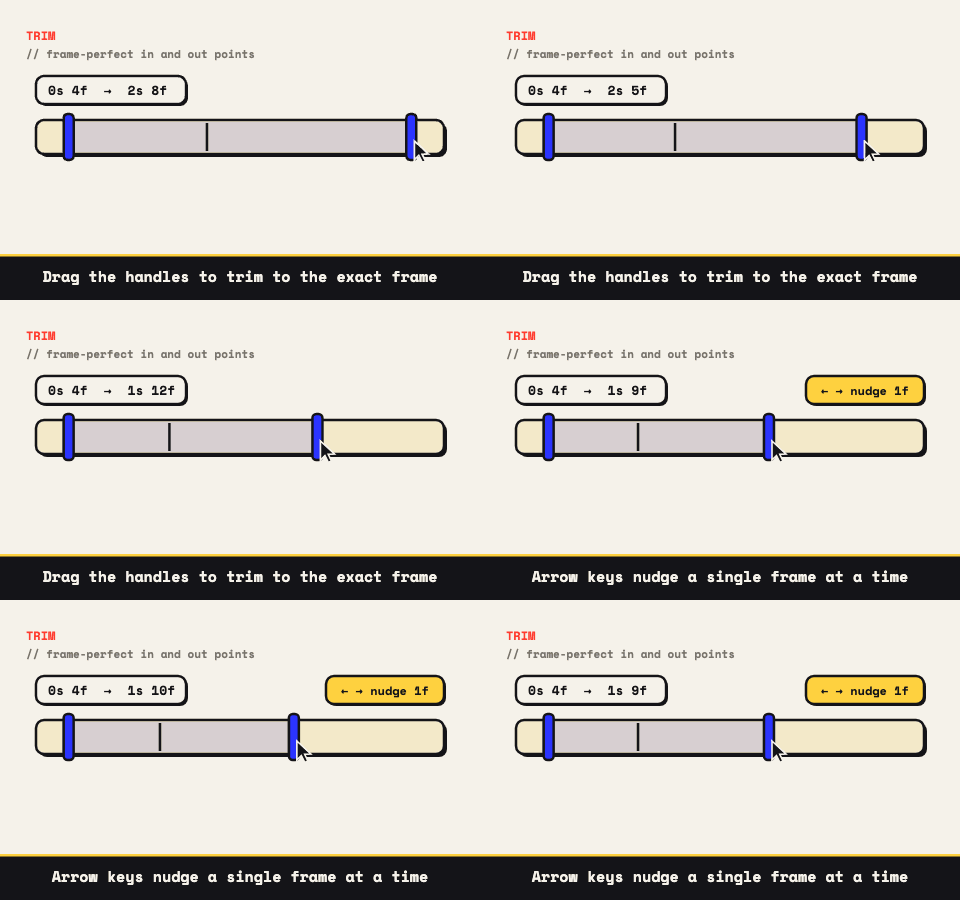
Most web motion either loops already or returns to rest, which turns trimming into a hunt for two identical frames. Scrub to the moment the element is at rest, set the in point, scrub forward to the next time it is in exactly that state, set the out point, then nudge by single frames until the two ends match. GIFs loop forever by default, so a cut that lands on the same frame at both ends plays as continuous motion with no visible seam.
When the motion runs one way and stops, Bounce is the cheap repair: the clip plays forward then straight back inside a single loop, which roughly doubles the frame count and removes the snap-back completely. The boomerang page explains why a palindrome has no seam to hide.
Four things this approach will not get you
Capturing a rendered page is a copy of the rendering, not access to the source, and the gap shows up in specific places.
- Hover and cursor states. The pointer has to be in frame to trigger them, so the pointer is in the export. Sometimes that reads as a demonstration. Sometimes it reads as a mistake.
- Protected video. A page playing DRM-protected content will typically come back as a black rectangle. That is the protection working, not a bug in the capture.
- Anything that only exists on a phone. A mobile breakpoint or a touch gesture has to be captured on the device, and the tab-capture API is desktop only. Record with the phone and drag the file in.
- A master of your own animation. If you built it, export from the tool that made it instead: a Lottie preview or an After Effects render both beat a screen capture of the same thing.
And the one that rarely gets said: somebody else's site is somebody else's work. Capturing a page for a bug report, a spec, a teardown, or a private design review is ordinary practice. Republishing a competitor's motion as your own showreel is not, and no export setting makes that call for you.