Prose is a bad instrument for describing timing
A reviewer writes that the sheet "feels late" or the toast "stacks weird," and you lose a morning working out which frame they were looking at. The timing information stayed in their head. What arrived in the thread was an adjective. Round two runs the same way in reverse, two people describing a quarter of a second to each other in English.
A loop closes that gap by moving the evidence instead of the description. Send the three seconds where the behavior actually happens, with the callout burned into the frames it belongs to, and the reviewer answers the question you asked. Record a Tab in the editor captures the staging tab through the browser's own share picker and drops it in as a clip; a recording you already took works the same way.
Spec first, build second, in one loop
The review artifact worth making is a comparison, and a sequence can carry one because it runs in time. Clip one is the reference motion, from the prototype or a motion render. Clip two is what shipped to staging. Trim both to the same beat and the loop plays intent straight into reality, which ends the part of the review where two people compare memories.
Two settings decide whether that comparison is fair. The FRAME toggle picks which clip sets the output size and aspect, so hand it to whichever recording is correctly proportioned. Then set Mismatched Clips to Fit with bars, which keeps the other clip whole inside real letterbox bars. Crop to fill looks tidier and quietly deletes whatever sat near the frame edge, which during a design review is regularly the thing under review.
Cuts between clips are hard, with no transition available, and here that is correct: a dissolve would smear the exact frames you want compared. If a take has twenty dead seconds in the middle, the Split button (or the S key) cuts the selected clip at the playhead so you can drop the middle and keep both ends. Ten clips fit in one output, which is more than any review question needs.
Callouts that arrive when the problem does
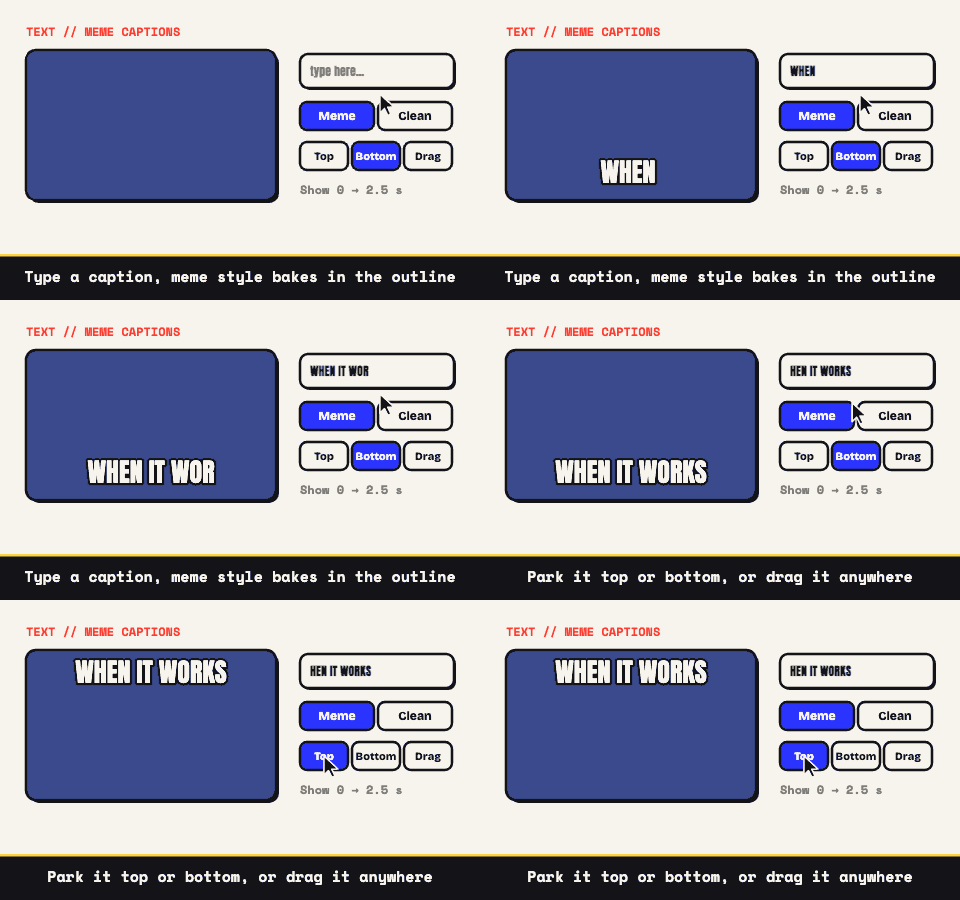
Captions here take optional timing, shown from 1.2s to 2.4s of the output, or blank for the whole loop. That turns a label into a cue. "Spec" sits over the first clip, "Build" takes over at the cut, and "overshoots" appears for the eight frames where it overshoots and then leaves the frame alone. Three overlays is the cap, which is two more than most review clips want.
The sequence timeline under the preview is what makes this fast. Clips are proportional blocks and captions are draggable bars on the same strip of output time, snapping to clip cuts and to each other, so aligning a label with the moment it names is a drag rather than arithmetic. The caption controls offer two styles: clean, with a color picker, reads as annotation; the Impact-style meme preset reads as a joke, which is the wrong register for somebody else's work.
There are no arrows. Shape overlays give you solid rectangles, circles, and triangles in any color, each movable and rotatable, so a triangle works as a passable pointer and a rectangle works as a censor bar. The second one earns its keep more often, because staging environments are full of real names and a review thread is read by more people than you counted.
Do not ask for color or type sign-off from a GIF
A GIF carries at most 256 colors per frame. Everything outside that set is approximated by the palette and smoothed over with dithering, which is a noise pattern doing an impression of a gradient. Put a shadow ramp, a glass blur, or a brand gradient through it and your reviewer is critiquing quantization error. Antialiased text goes the same way: the gray edges that make 13px type legible are the first thing a reduced palette spends.
So split the request by medium. Behavior, ordering, and timing survive a GIF intact, which is why it suits "does this interaction read?" For anything chromatic, flip the Output Format switch to APNG for full 24-bit color at a heavier file, or to MP4 for a smaller H.264 clip, or paste a still from the design file, since a PNG is a better color reference than any animation. The rest of the limits are worth saying out loud:
- No audio. Nothing gets narrated, so anything needing explanation goes in the comment or a caption.
- No scrubbing, no pause, no frame step. People try to scrub a GIF constantly. It just loops, so keep it to three or four seconds.
- No page underneath it. Focus order, keyboard traps, and screen reader output cannot be reviewed in a recording of pixels. Post the staging link beside the GIF.
- No reliable read on jank. A capture softens dropped frames and the encoder softens them again, so a smooth loop is not evidence of a smooth build.
The least cleared footage in the building
A design review clip is a strange asset to own. It is the most interesting footage in the company and the least approved for release: pricing nobody has announced, a flow still with legal, a customer's real dashboard in the staging seed data. Feeding that to a web converter puts a copy of it on somebody else's disk under a retention policy you have not read.
This one runs in the page. Decode, frames, palette, and encode all happen on your own processor, and once the tab has loaded you can disconnect and still export. That is not a stronger promise than the other sites make, it is a converter with nowhere to send your file. Save the edit as a project file and round two is reopening it, swapping the staging clip for the fixed one, callouts still where you left them.