The loop is a footnote Netscape added in 1995
The GIF specification finished in 1989 has no concept of repeating. What everyone thinks of as GIF looping is a small block called the Netscape Application Extension, bolted on by Netscape Navigator in the mid nineties and adopted by every decoder since because it was useful. The block carries a repeat count, and a zero in it means forever.
The Loop control here inherits that quirk. Forever writes the block with a zero. Play once omits the block entirely and lets the file fall back to its 1989 behavior. Counts in between store repetitions after the first play, so asking for three plays writes a two. The upshot: you never switch looping on, because forever is the default and every platform honors it. All of the effort goes into the cut.
Four honest ways to kill a seam
A seam is visible whenever the last frame and the first frame disagree. There are four ways to fix that, and it is worth knowing which one you are using rather than nudging handles until it feels better:
- Cut on a natural cycle. The best loops were already loops: a pendulum at the end of a swing, a wheel back at the same spoke, an interface returning to rest, a person completing a gesture and settling. Find the two matching moments and cut there. This is the only method that produces a loop nobody notices.
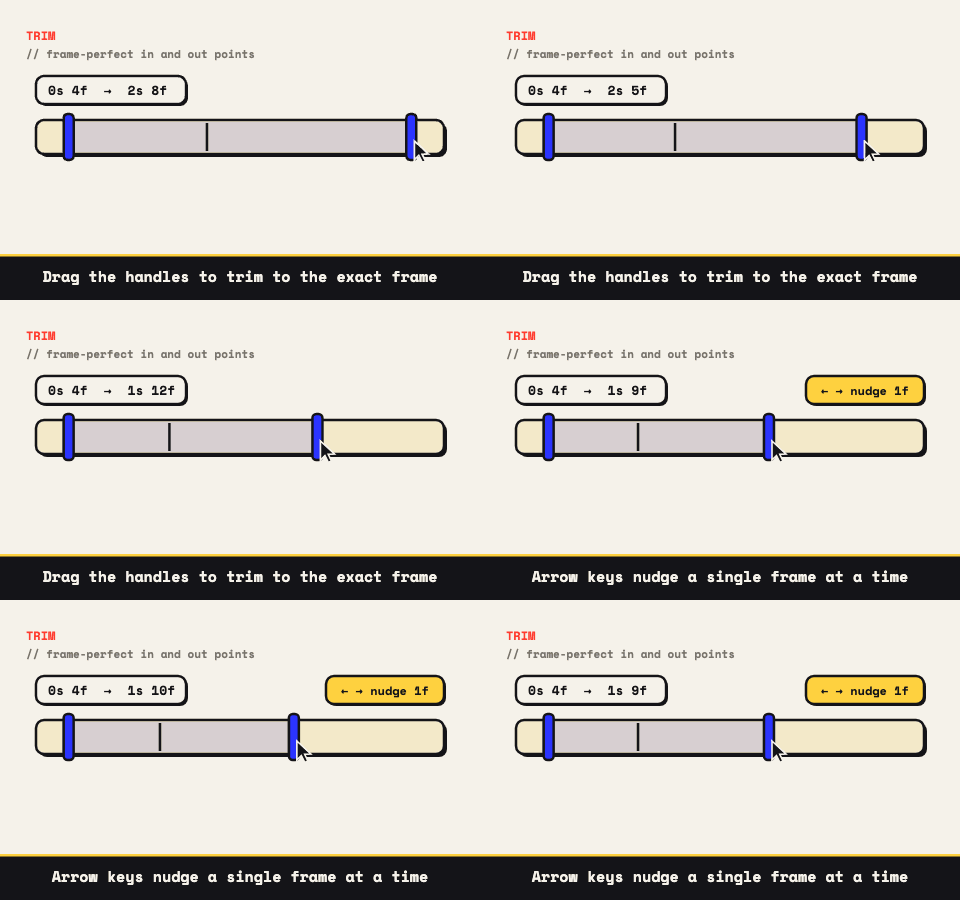
- Match the end frame to the start frame by hand. When the cycle is close but not exact, step the in and out points one frame at a time and watch the preview. The timeline snaps to real source frames and arrow keys move a handle by exactly one, which is the difference between landing on the moment and landing near it.
- Bounce. The per clip toggle plays the footage forward then straight back inside one loop. A palindrome has no wrap point by construction, so the seam cannot exist. It costs roughly double the frames and it reads as a bounce rather than a cycle, which is honest and sometimes exactly right. The boomerang page goes deeper on when that look serves you.
- Fade both ends to the same color. Under All settings, a fade in and a fade out sharing one color swatch land the first and last frames on the same flat field, so there is nothing left to mismatch. It announces itself as a fade, which suits a demo or a title card more than a two second reaction.
What you cannot fake here
There is no crossfade between the end of the loop and its beginning, and no dissolve between clips in a sequence either. Joins are hard cuts, by design. Video editors hide a bad loop under a half second blend; that option does not exist here, so a mismatched cut stays visible and you solve it with the cut itself.
There is also nothing that scans your clip and proposes the best loop point. No detection, no suggestion, no AI anywhere in the tool. Finding the cycle is your eye and the arrow keys, which is slower once and more reliable after that, because a detector optimizing for pixel similarity will happily hand you a technically perfect loop of the wrong two seconds. And no cut rescues footage with no cycle in it: handheld drift, a slow pan, anything where the frame never revisits a state it held. Bounce or a fade is the answer there, or different footage.
How long the loop should actually run
Short, and shorter than instinct suggests. A reaction lands between one and three seconds, past which the viewer has read it and is waiting. A walkthrough can hold three to six, provided every second shows a change. Anything past about ten seconds stops working as a loop, because the viewer never sees the repeat and you have made a small silent video with none of the compression advantages of one. Frame rate matters here too: at 10 fps each frame holds the screen for a tenth of a second, long enough to notice a bad wrap, so a stubborn seam sometimes softens with a few more fps.
Forever is not always right either. In an email, a document, or a slide, a loop that never stops competes with the text beside it the entire time the reader is there. The Loop control offers Play once, two, three, or five plays, and a demo that runs three times and then rests is often the more considerate choice. Most social platforms re encode uploads and will loop them anyway, so save finite counts for places you control.
The preview is the encoder, not a mockup
Seam hunting is iterative: nudge a frame, watch it wrap, nudge again. That only works if what you are watching is the truth. Play edit runs the assembly through the same pipeline that writes the export, cuts, captions, fades and all, looping it the way the finished file will. When the seam looks closed in the preview, it is closed in the GIF.
All of it runs on your own processor inside the page, which is what makes the iteration bearable: twenty adjustments cost twenty seconds instead of twenty uploads, and the clip stays on your disk throughout. Bring a video, a GIF you already have, or a handful of stills to the tool and start hunting the cycle. If precise cutting is the skill you want to sharpen, the frame perfect trimming guide covers the keyboard work in detail.